Appointment Reminder Automation: Reduce No-Shows
Your calendar is full, your team is ready, and then… no-shows turn a busy day into a game of musical chairs. Empty seats, idle staff, and a quiet phone aren’t just annoying—they’re expensive.
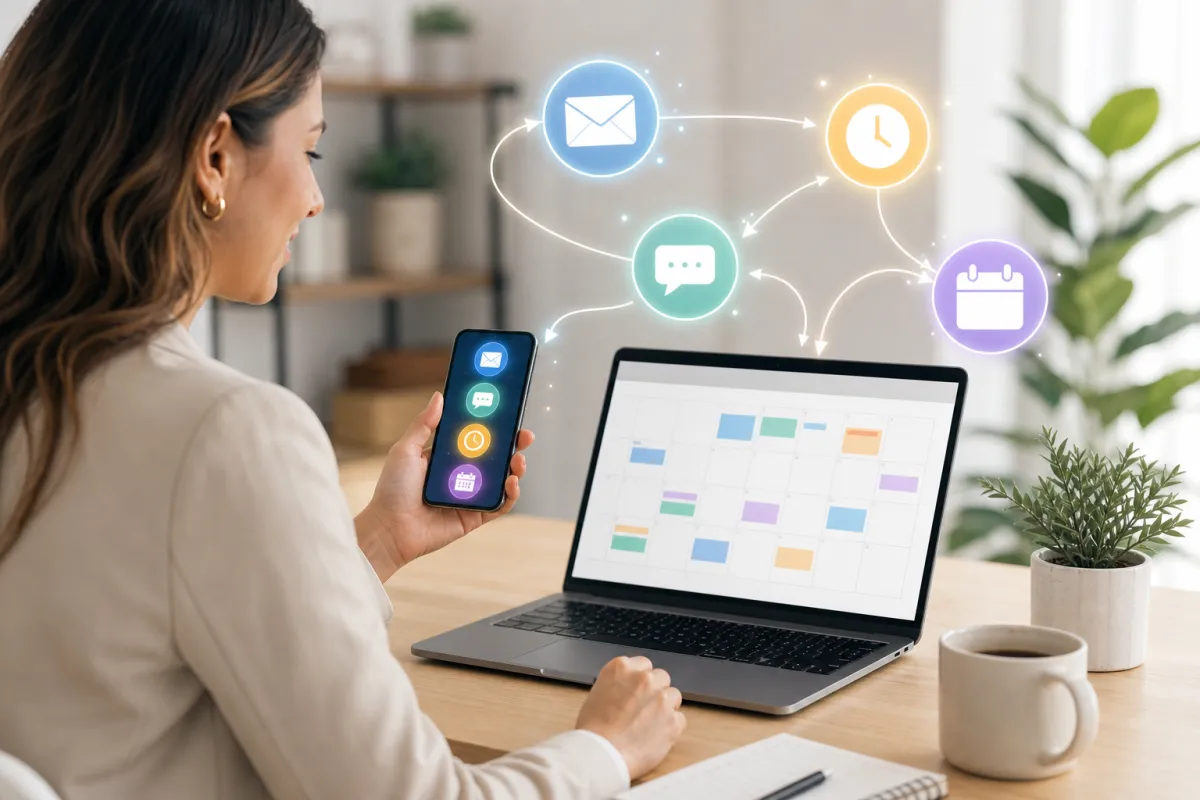
Appointment reminder automation uses email and SMS to send timely, personalized nudges that confirm attendance, offer easy rescheduling, and share prep details—without extra manual work. Done right, automated appointment reminders reduce no-shows, protect revenue, and make customers feel looked after with clear, friendly communication.
In this guide, you’ll get a practical workflow for email and SMS appointment reminders, examples by industry, common pitfalls to avoid, and how Kalingo can support your setup.
Why Appointment Reminder Automation Matters for Revenue and Retention
No-shows don’t just hurt the slot they occupy—they disrupt the rest of your day. Staff wait, prep time is wasted, and it’s tough to backfill at the last minute. When this happens a few times a week, margins shrink fast.
Relying on manual calls and ad-hoc texts means reminders go out late, inconsistently, or not at all. But a consistent cadence—email first, with SMS added when it’s time-sensitive—meets customers where they are and helps reduce no-shows.
Every avoided no-show is more than one saved appointment—it’s preserved prep time, steadier cash flow, and one less fire drill for your team.
Data helps you improve, too. For email reminders, track what messages and timing perform best and refine your sequence. For attendance outcomes, monitor show/no-show trends through your booking calendar or operational reports.
The Practical Framework: Email + SMS Appointment Reminder Workflow
Use this four-step framework to launch reliable reminders that lower friction for customers and lift your show-up rate.
- Connect booking and contacts: Ensure your online booking and contact records are connected so automations trigger at the right time and reach the right person.
- Map a simple, two-channel sequence: Start with a booking confirmation (email; add SMS if time-sensitive). Schedule a 48–72 hour email reminder, then a 24–2 hour final reminder. If you send SMS appointment reminders, keep them concise and include a direct link to confirm or reschedule. Add a no-show follow-up that makes rebooking easy. Schedule messages based on the recipient’s local time and respect quiet hours.
- Write concise, friendly templates: Keep messages short and clear. Personalize with name, date/time, location, and service. Include one obvious action—often a reschedule or manage-booking link. For email, use a clear subject line (e.g., “Your appointment this Tuesday”) and a prominent button. For SMS, keep the tone human and the message brief.
- Track outcomes and improve: Review which emails get the most engagement and adjust timing and content. Use your calendar data to watch show/no-show patterns. Iterate monthly with small tests (e.g., 72 vs. 48 hours).
Examples for Small Businesses
Here are realistic reminder cadences and messages for different industries. Adapt the tone, timing, and details to your audience and service length.
Dental clinic: Patients book weeks ahead and often forget. Send an email confirmation on booking with prep notes (insurance, forms), a 72-hour reminder email, and a 24-hour reminder (email or SMS, depending on your process) with a link to confirm or reschedule. A 2-hour reminder with parking and arrival notes helps day-of.
Salon/spa: Shorter lead times and frequent rebookings. Send an instant confirmation email on booking. Follow with a 24-hour reminder (email or SMS) and a same-day reminder 2–3 hours prior. Include a reschedule link if plans change. Maintain a simple waitlist process to backfill sudden openings.
Fitness coaching or classes: Group sessions need consistent attendance. Send a booking confirmation email with class location and gear checklist, a 24-hour reminder (email or SMS), and a 90-minute final reminder with entry notes. After a missed class, send a friendly follow-up with a quick link to book the next session.
Auto repair: Customers juggle transport, so timing matters. Confirm via email with drop-off instructions and payment details. Send a 48-hour email reminder and a 24–2 hour reminder (email or SMS) with address and a map link. Post-visit, automate a check-in and review request.
How Kalingo Helps You Implement This
- AI Appointment Booking workflow: Automate scheduling conversations with an intelligent bot that guides contacts toward booking available time slots—reducing back-and-forth and saving time.
- Email Sequences for reminders: Build multi-step, automated email reminders that stay in a single threaded conversation. Use delays and conditions, stop on reply, and review sequence and step-level statistics to learn what works.
- AI Studio to connect forms and calendars: Create booking pages or lead-capture forms and connect your calendars so your AI-generated pages can collect information or book time. Forms and calendars aren’t connected automatically—make the connection to activate the experience.
- Brand the booking experience: Customize your calendar booking widget logo to match your brand for a more professional appearance.
- Support recurring appointments: Set up recurring appointments to simplify regular sessions and reduce manual scheduling.
Tip: If you also send SMS appointment reminders through your chosen texting solution, align the timing with your email sequence and include a clear reschedule link to help reduce no-shows.
Common Mistakes to Avoid
- Over-messaging: Too many reminders create fatigue. Aim for 2–3 purposeful touchpoints.
- No easy action: Messages without a clear manage-booking or reschedule link force customers to call. Always include the simplest next step.
- Wrong local time: Sending at odd hours frustrates customers. Schedule by recipient time zone and respect quiet hours.
Summary / Next Steps
Automated appointment reminders protect time and revenue. A simple, consistent mix—email first, with SMS where it adds speed—keeps customers informed and helps reduce no-shows. With Kalingo, you can pair AI-driven booking conversations with automated email reminders and connected calendars to create a smooth, professional experience.
Ready to get started? Try Kalingo, start a trial, book a demo, or request a setup call to see how Email Sequences, AI Appointment Booking, and AI Studio work together.
Recommended next reads
- Post-Purchase Automation: How to Bring Customers Back After the First Sale
- Email Marketing Automation: 5 Campaigns Every Small Business Should Use
- Marketing Automation for Small Businesses: What to Set Up First
Ready to compare options? View Kalingo pricing plans and choose the setup that fits your next growth move.
Frequently Asked Questions
What is appointment reminder automation and how does it work?
It’s a workflow that sends scheduled, personalized reminders before an appointment via email and, if you use it, SMS. Messages typically include key details and a link to manage the booking. In Kalingo, you can pair the AI Appointment Booking workflow (for scheduling conversations) with Email Sequences (for automated email reminders) and connect calendars and forms in AI Studio.
How many reminders should I send by email and SMS?
Most services do well with 2–3 touchpoints: a confirmation on booking, a 48–72 hour reminder, and a final reminder 24–2 hours prior. In Kalingo, you can implement the email portion with Email Sequences; for SMS appointment reminders, follow your texting provider’s best practices.
How do I monitor and improve results?
For email reminders, review sequence and step-level statistics to see which messages perform best. For attendance outcomes, track show/no-show trends in your calendar or operational reports and refine timing and content accordingly.
Do I need consent for SMS appointment reminders?
Obtain appropriate consent based on applicable laws and carrier policies. Identify your business in each message, include opt-out language where required, and consult your legal advisor for guidance in your region.